





App & notifications
Find the right connection for your trip

Reliable travel connectivity across the world
Receive your QR code after purchase, install without swapping SIMs, and stay online without roaming surprises






How does an eSIM work?
[ Get connected in a few simple steps ]
What is an eSIM?
Travel without swapping SIM cards
An eSIM is a digital SIM built into your device. Scan a QR code to install your plan, then enable data roaming when you arrive to connect to a supported local network—without carrying or swapping a physical card.
The future of travel connectivity
Travel connectivity is rapidly moving from removable SIM cards to eSIM. As dual-eSIM and eSIM-only phones become more common, buying data online before departure and connecting on arrival is becoming the simplest way to stay online abroad.
- Keep multiple destination plans ready for different trips
- Keep your primary number active while using travel data
- Install by QR code before departure for a smoother arrival
Make sure your phone
is unlocked and eSIM-compatible
Check eSIM compatibilityBefore purchasing, confirm that your device supports eSIM and is carrier-unlocked. iPhone XR/XS and newer models, along with many recent Android flagship phones, support eSIM.
Installation and activation
Choose any of the four methods below to install your Jeko eSIM.
Install from the QR code image
Press and hold the QR code in your email, LINE message, or order page, then choose “Add Cellular Plan” or “Add eSIM.”
Scan a QR code in Settings
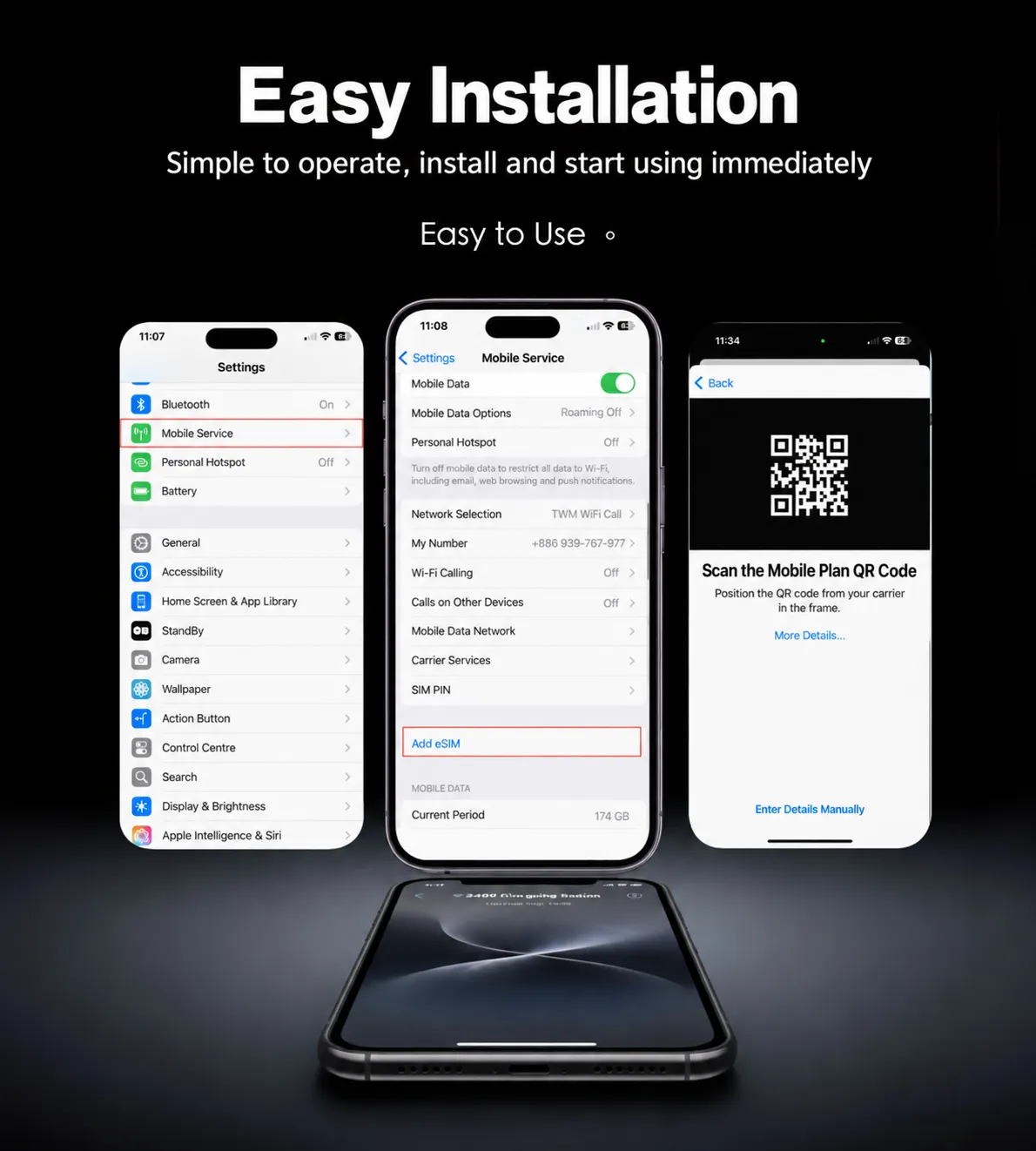
Go to Settings > Cellular > Add eSIM, choose “Use QR Code,” and scan the code sent by Jeko.
Scan with the Camera app
Point your iPhone camera at the QR code, tap the cellular-plan notification, and follow the prompts to add the eSIM.
Install manually
If scanning is unavailable, choose “Enter Details Manually” and enter the SM-DP+ address and activation code from your order email.
Important: Install while connected to Wi-Fi or another reliable network. Do not delete the eSIM after installation, as the QR code usually cannot be reused. If you need help, take a screenshot and contact support.

Notification
- News & Updates
- Special Offers