STEP-01
Before You Start
Device preparationPrepare your phone for a quick, trouble-free eSIM installation and activation.
Confirm your phone supports eSIM
Before installing and activating your eSIM, confirm that your phone supports eSIM and meets the minimum operating-system and device requirements. Review the basic compatibility list below, then enter your exact phone model on the product page for a final database check.
Confirm both eSIM compatibility and carrier-unlocked status
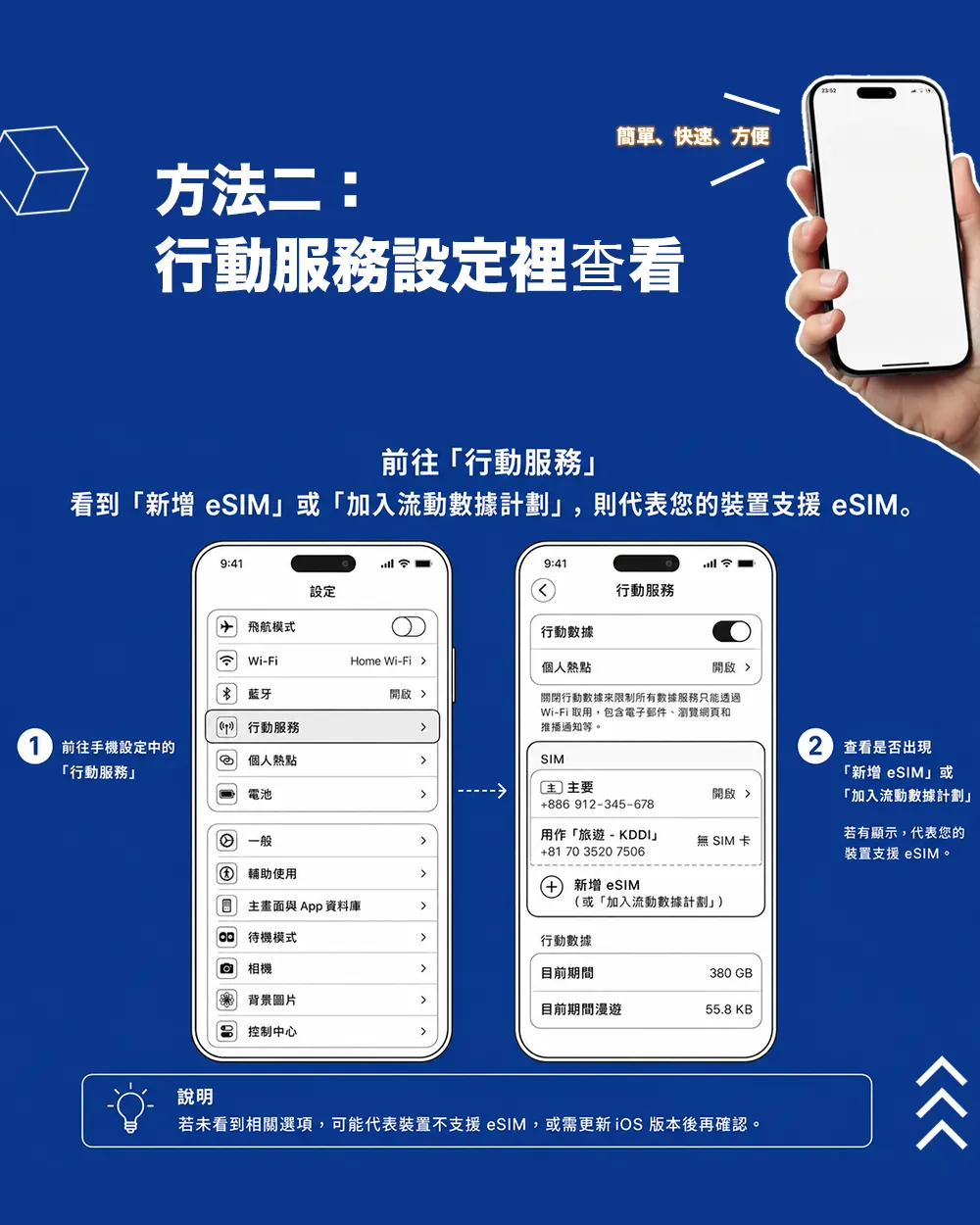
 Open "Cellular" or "Mobile Service." If you see "Add eSIM" or "Add Data Plan," your device supports eSIM.
How do I check whether my iPhone is unlocked?
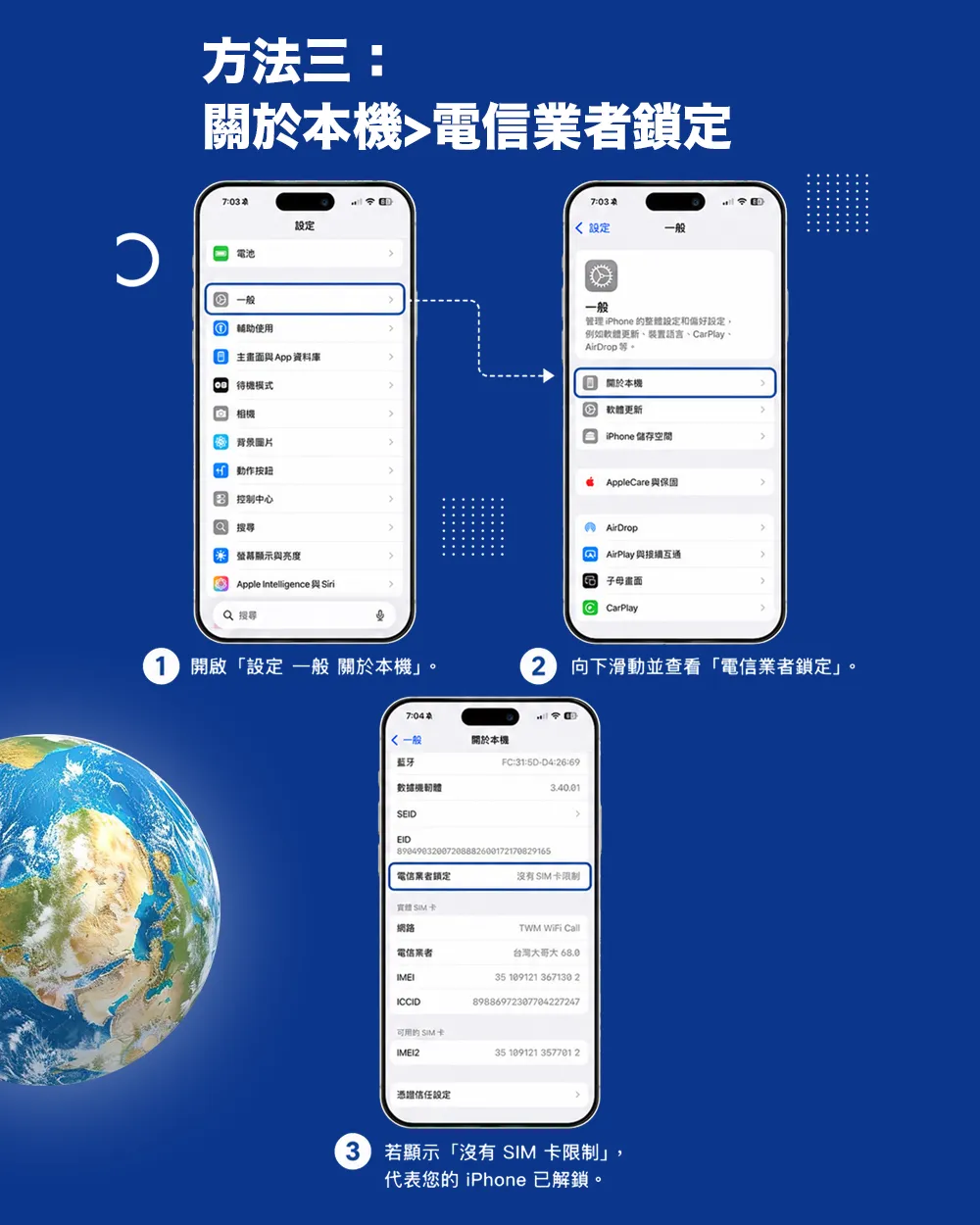
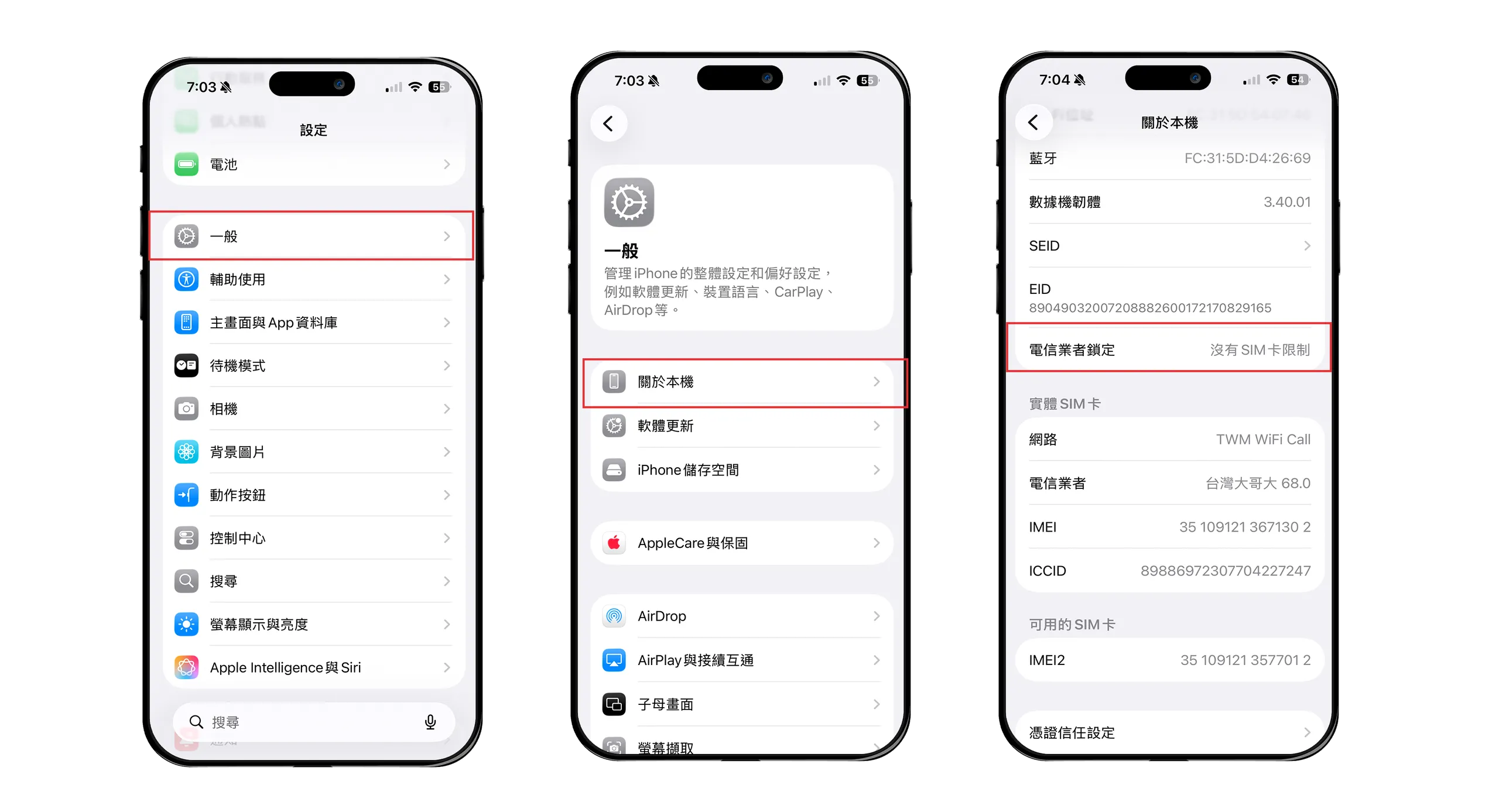 1. Open Settings > General > About.
2. Scroll down to "Carrier Lock." If it says "No SIM restrictions," your iPhone is unlocked.
How do I check whether my Android device is unlocked?
Use either of these methods to check whether your Android device is carrier-unlocked.
1. Contact the seller or carrier
A device purchased directly from its manufacturer, such as Samsung, is usually unlocked. A phone purchased from a carrier, such as Orange, AT&T, or Movistar, may be restricted to that carrier's network. Contact the carrier to confirm its status and ask whether it can be unlocked.
2. Test another SIM card
Insert a SIM card from a friend or family member. If you can make calls or send text messages, the device is unlocked. If not, it is still locked to the original carrier and may not be able to use this eSIM.
Confirm your phone model
Before installing and activating your eSIM, confirm that your phone supports eSIM and meets the minimum operating-system and device requirements. Review the basic compatibility list below, then enter your exact phone model on the product page for a final database check.
INSTALL
eSIM installation and activationFollow the steps below to install and activate your eSIM. Select a card to view illustrated instructions.
Install your eSIM
Show examples ↓Choose any of these four methods to install your Jeko eSIM.
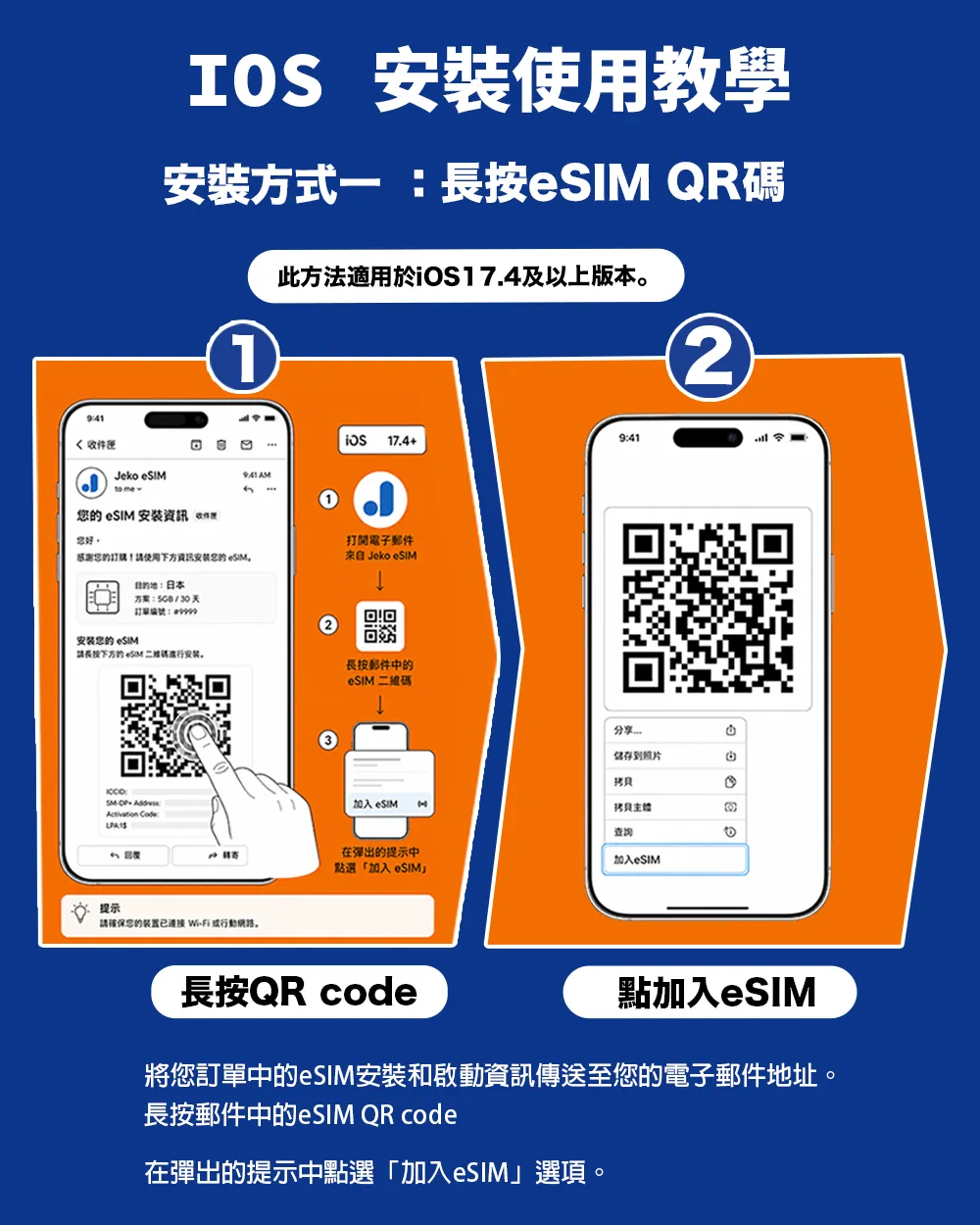
Touch and hold the QR code
Touch and hold the QR code in your email, LINE message, or order page. Select "Add Cellular Plan" or "Add eSIM" to begin installation.
Scan the QR code from Settings
Go to Settings > Cellular (or Mobile Service) > Add eSIM, select "Use QR Code," then scan the QR code sent by Jeko.
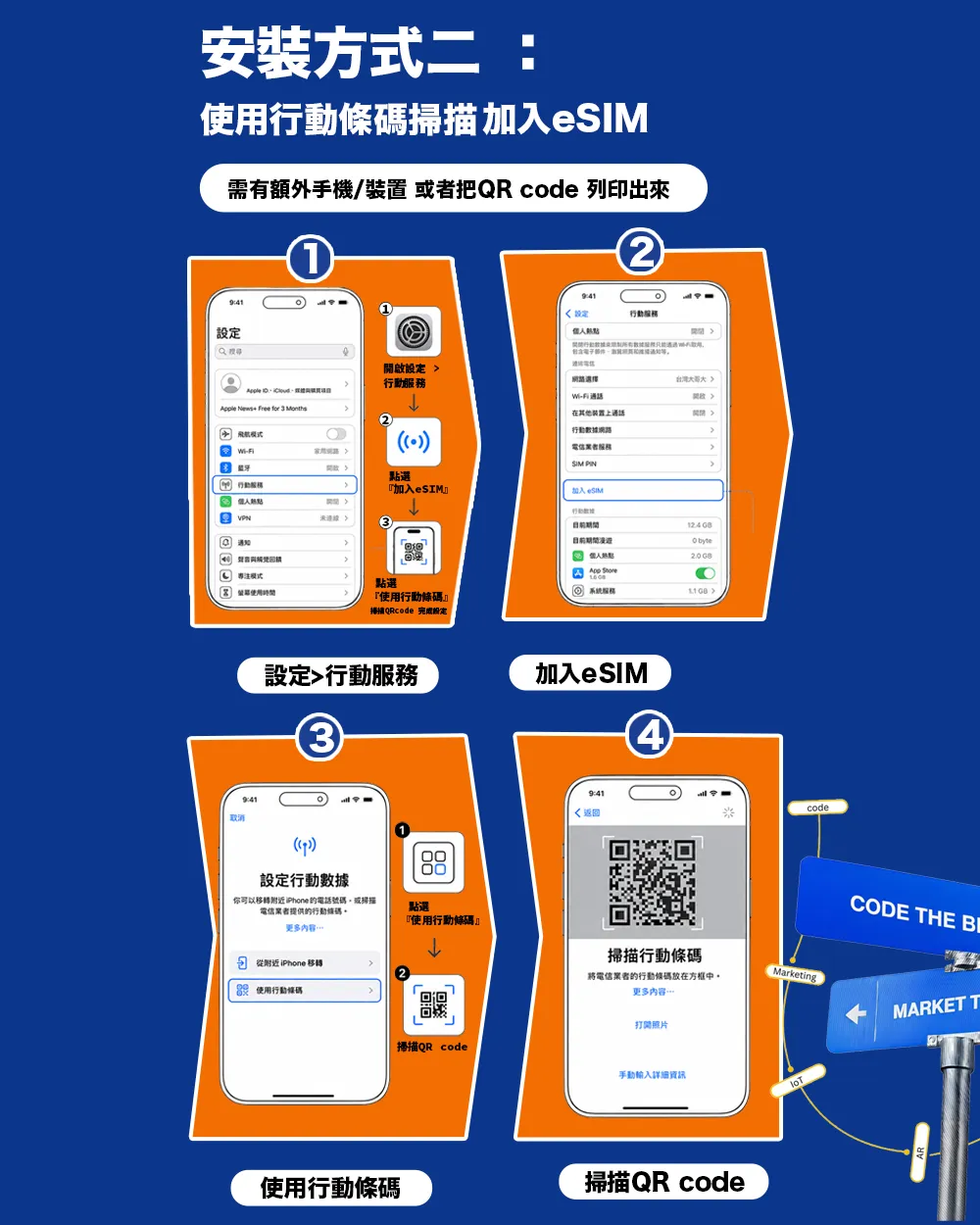
Scan the QR code with Camera
Open the iPhone Camera and point it at the QR code. Tap the "Cellular Plan" notification at the top of the screen, then follow the prompts to add the eSIM.
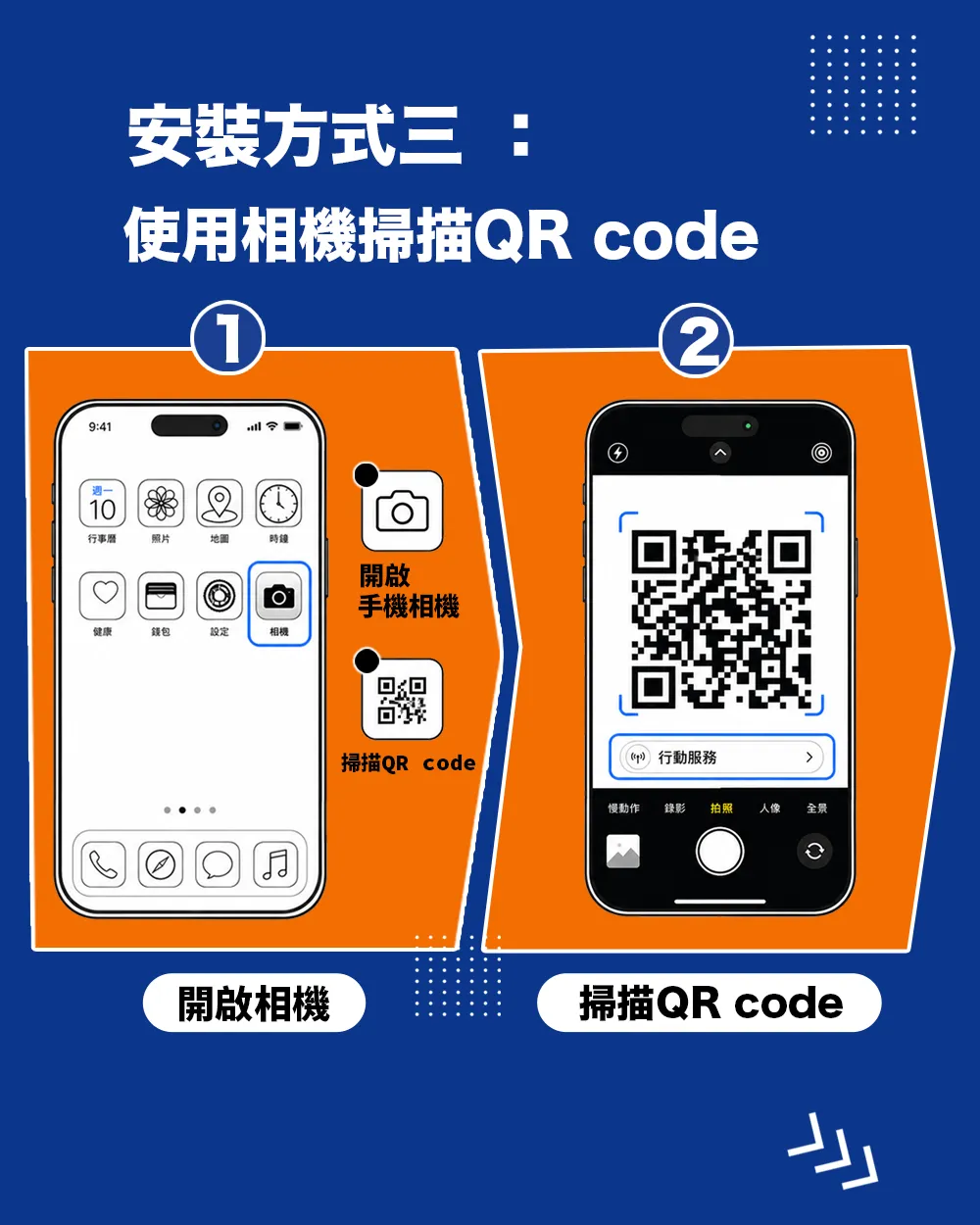
Install manually
If you cannot scan the QR code, choose "Enter Details Manually" and enter the SM-DP+ address and activation code included in your order email.
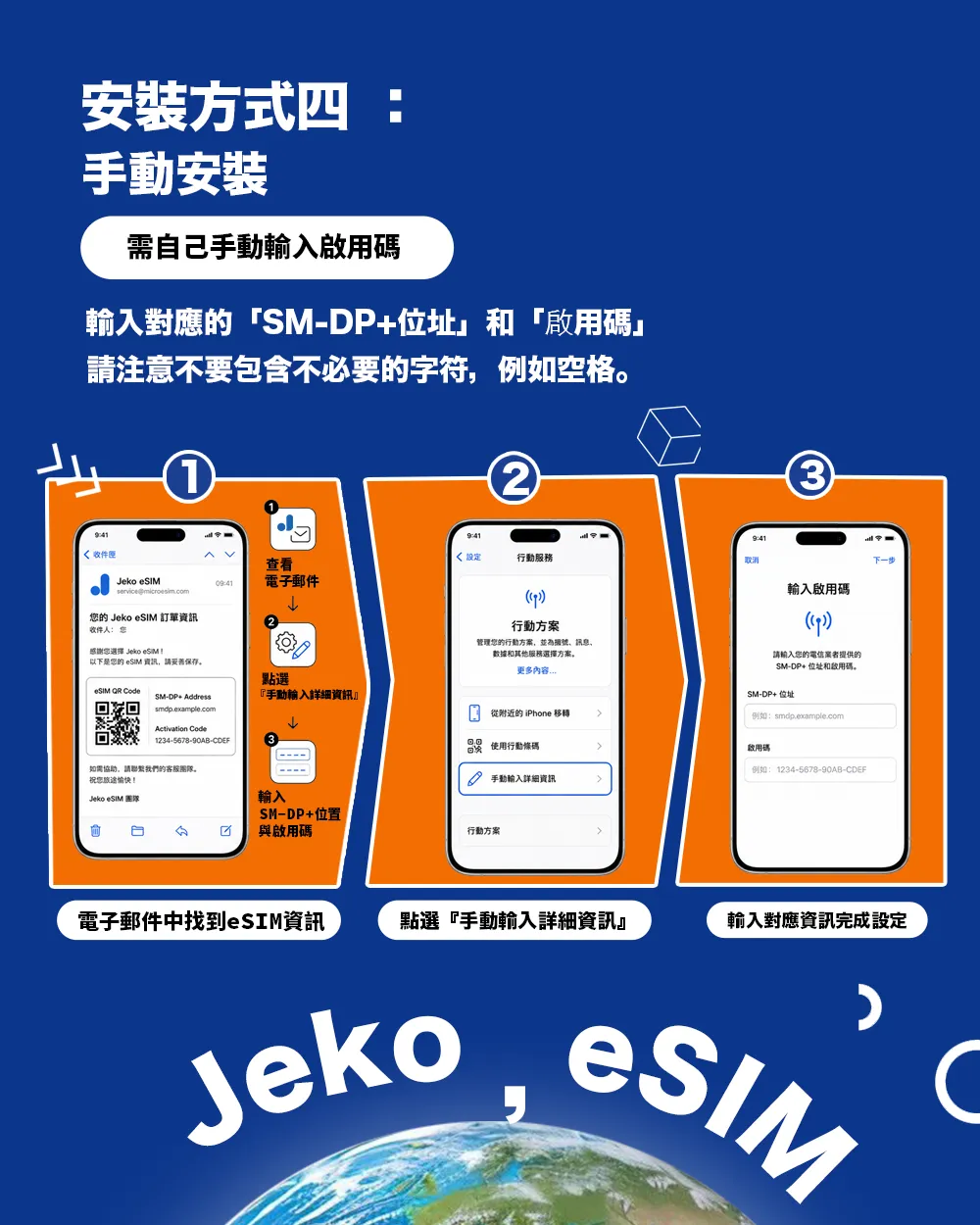
Check compatibility and carrier lock
Show examples ↓Before installation, confirm that your phone supports eSIM and is carrier-unlocked. Use any of the three checks below.
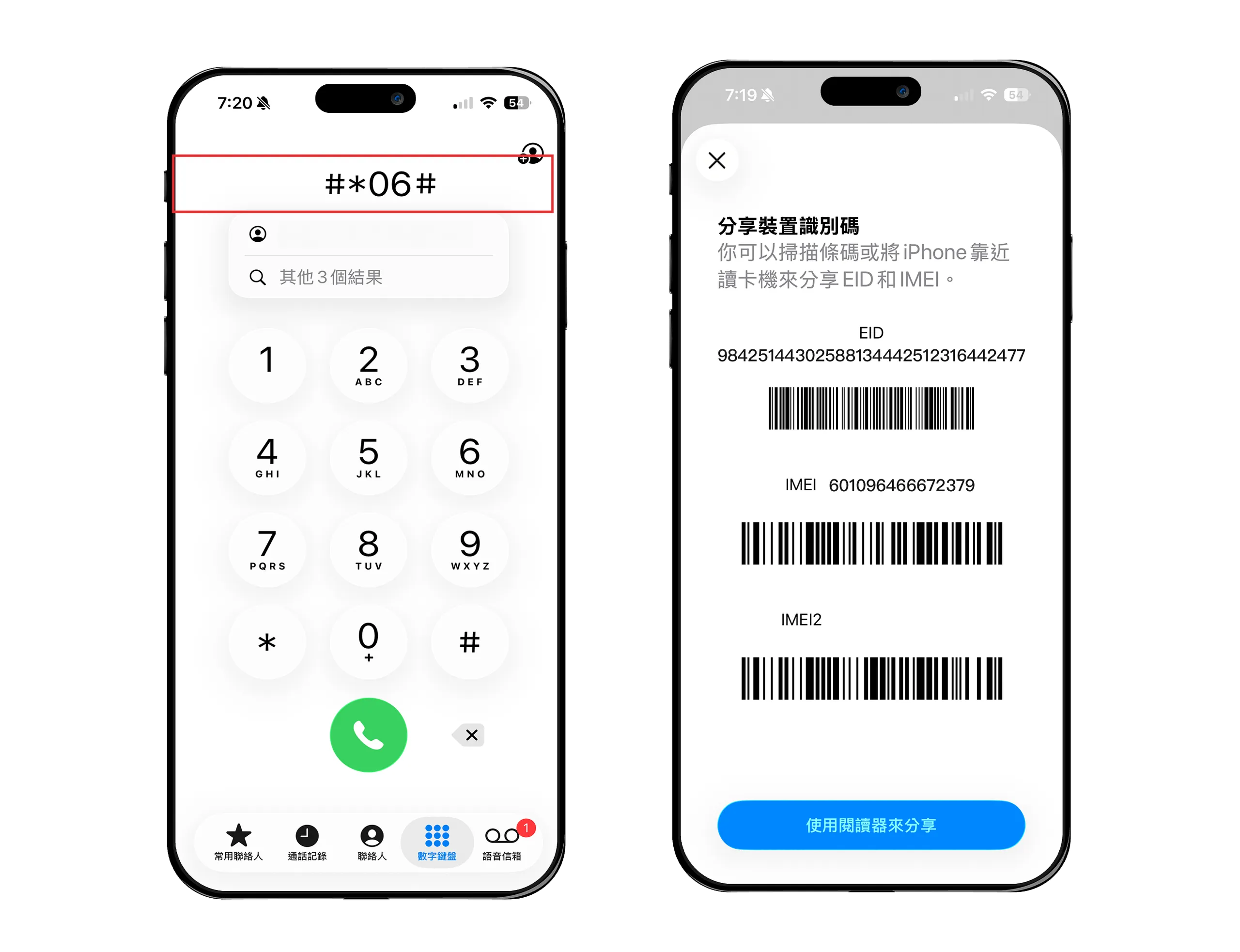
Option 1: Dial *#06#
Enter *#06# in the Phone app. If EID, IMEI, and IMEI2 appear, your device supports eSIM.
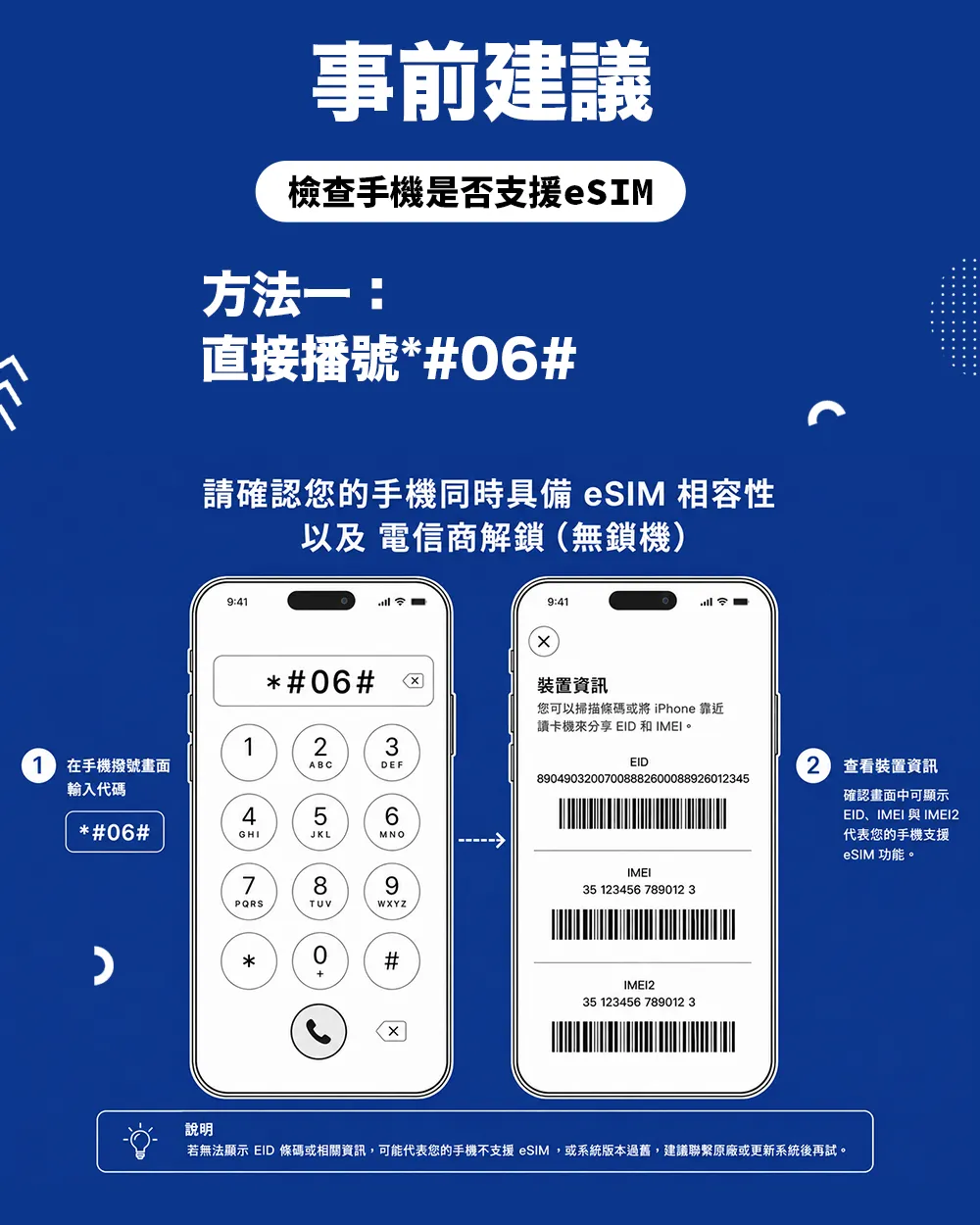
Option 2: Check Cellular settings
Open "Cellular" or "Mobile Service." If you see "Add eSIM" or "Add Data Plan," your device supports eSIM.
Option 3: Confirm the device is unlocked
Go to Settings > General > About and find "Carrier Lock." "No SIM restrictions" means your device is unlocked.
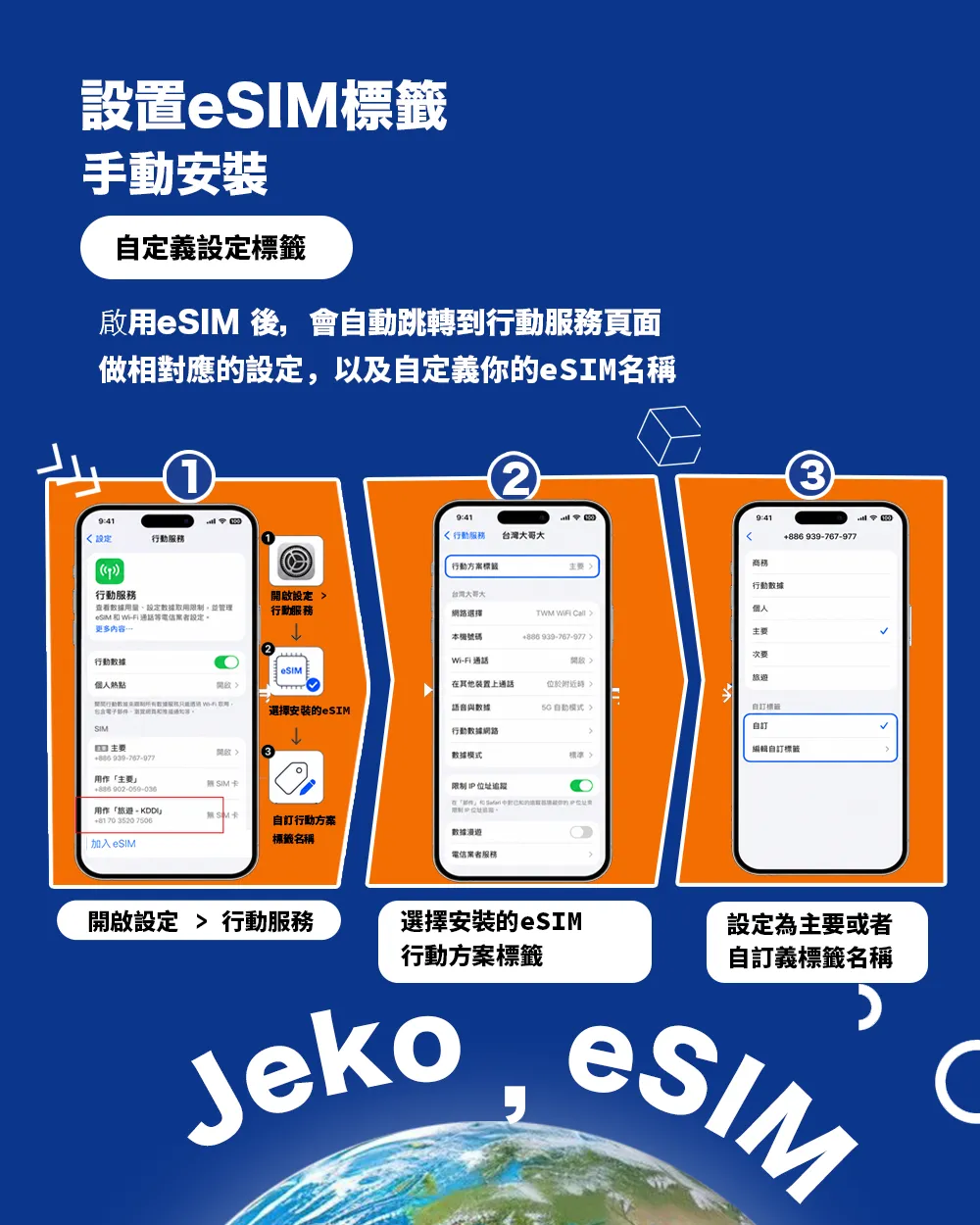
Label your eSIM
Show examples ↓After adding the eSIM, you will return to the Cellular or Mobile Service screen. Your new eSIM usually appears at the bottom of the list. Give it a clear label, such as "Jeko eSIM," so it is easy to identify later.
Give your travel eSIM a custom label in Cellular settings